Windows 7 : Maximizing and Restoring Windows made easier

Posted on Nov. 2, 2008


As Windows 7 making news all over the web about it's new features like Superbar (new taskbar), Jump lists and the Ribbon interface etc.,i decided to try it out and i am quite satisfied with the OS as it is performing so well being in the pre-beta stage.
      
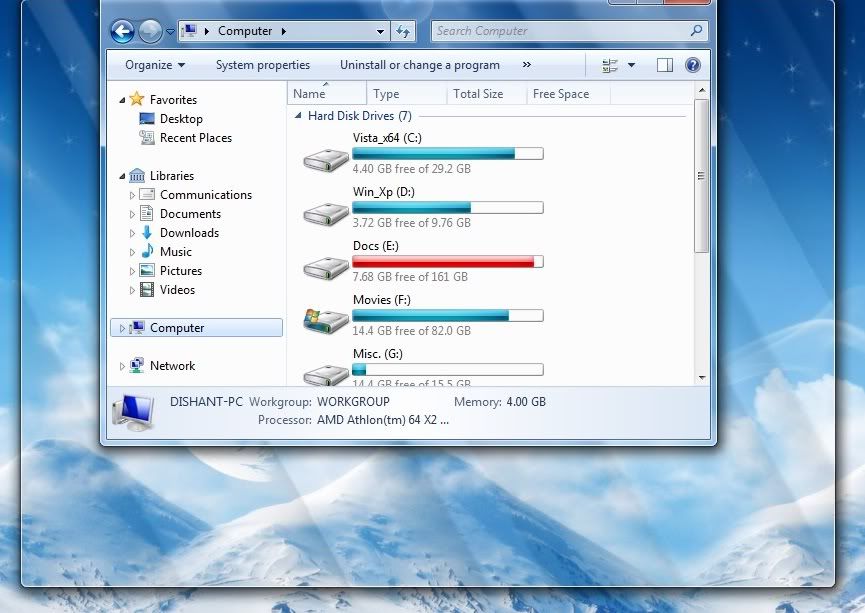
One cool feature that i found in Windows 7 is that now we can maximize a window just by dragging it to the upper edge of our desktop and restore it just by doing the reverse. When you drag a window to the left edge of the desktop it occupies the left half of it. While you drag a window to the upper edge of the desktop in order to maximize it, you see an imaginary window frame with a  bubble like effect originating from the point where your mouse pointer touches the upper edge of the screen and it looks cool. (see screenshot below)


Google Preview Add-On For Firefox

Posted on Sept. 9, 2008


Mozilla Fiefox is known for a large number of Add-ons that makes the best browser even better.In the long list of those powefull Add-ons, here comes another one GooglePreview 3.13. The GooglePreview 3.13 shows preview thumbnail images of websites you are searching on your google and yahoo searches. It not only makes the searches look better but can help you make a better choice of which page to go to.


You can switch back to normal mode by clicking that small GP icon in the bottom-right corner of browser window.

Download Link
 

Creating, Installing & Managing Google Chrome Themes

Posted on Sept 9, 2008


As of now, Google Chrome BETA does not support themes officially and provides no way to manage them, However, free software are now available to easily create, install and manage themes for the browser.

Google Chrome Firefox Theme


Xchrome Theme Manager is the first and only software currently available to install and manage Google Chrome Themes, The free software is still in BETA but lets you fully automate the installation of Google Chrome themes without any hassles.

XChrome Theme Manager
Xchrome Theme Manager Features:
  • Automated Theme Installation.
  • Edit and build your own Google Chrome themes.
  • List of all Google Chrome installed Theme with preview and author details.
  • Theme Installer for creating single click Google Chrome theme installers.

Sign in With GMail, Yahoo or any other email A/C in Live Messenger

Posted on Sept 8,2008

 
With the help of this Tutorial you can sign in to Windows Live Messenger using your Gmail, Yahoo or any other account, no need to install any other Messenger.Let us see how its done, For example say you want to use your Gmail as Windows Live ID and you want it to use for Windows Live Messenger.


Go to Windows Live ID or just Windows Live ID which will take you to the link. Scroll down to “Sign Up Today” > “Use an e-mail address you already have” > And click on the link Get started now. This link will open up a Create Credentials page. Just fill up with your Gmail address you want to use and set password. This password may not be same what you had given for Gmail address while registering it. Fill the form completely and Press Continue. So this creates your credentials for Gmail.


After that you will get two mails sent to your Gmail address. One will to “Confirm your e-mail address for Windows Live ID” and the other mail “Welcome to Windows Live ID”. So once you confirm your e-mail, you are ready to use your Gmail as Windows Live ID.


Here you can see I am signed into Windows Live Messenger with my Gmail as Windows Live ID.


source

Fix: Dragging a Folder does not create Shortcut in Favorite Links in Vista

Posted on Sept. 8, 2008


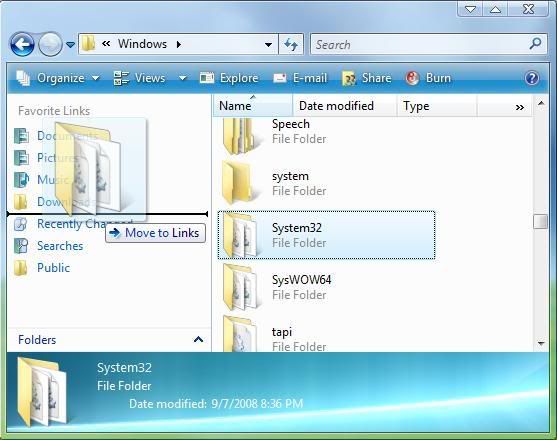
In Windows Vista we have got Favorite Links under Windows Explorer where we can place shortcuts to folders for easy access. But I've seen a problem on some vista pc's where when i tried to create a link for a folder by dragging it in the Favorite Links area, the whole data inside that folder including sub-folders were moved to the Links folder which was not supposed to be.(see screenshot)


The solution of this lies in the Desktop.ini file in the Links folder. Open it with Notepad and look for the line DefaultDropEffect=4, if that's missing then copy and paste it after the line:


IconResource=%SystemRoot%\system32\imageres.dll,-185.


Now save the file.The DefaultDropEffect line sets the default drag-and-drop action. Setting it 4 creates a shortcut of the dragged folder in the Links folder.


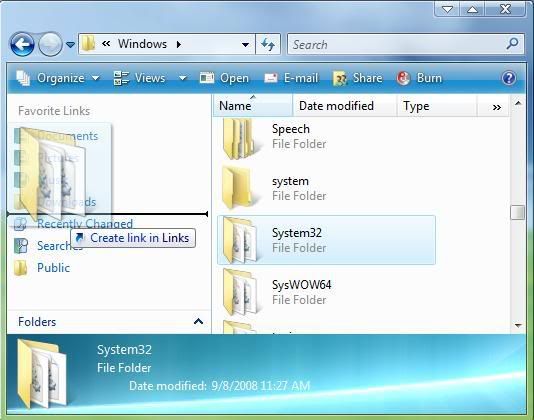
After that right-click on the desktop.ini file and set its attribute to Read-only and Log off Windows. Now you should be able to create a link in the Favorite Links area by dragging a folder instead of moving it.(see screenshot)