How to Enable or Disable Taskbar Thumbnail Preview in Windows 7

Posted on Jan 16, 2009


Follow the steps given below to disable the Thumbnail Previews: 

 
1. Click on start and type on search bar gpedit.msc and press enter
2. Now navigate to User Configuration, Administrative Templates, and Start Menu and Taskbar in left pan of Group Policy Editor
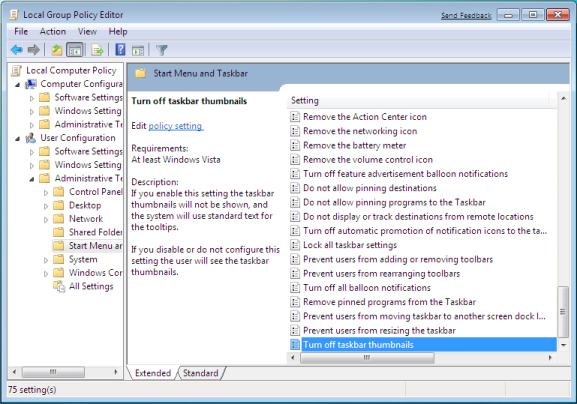
 
3. Locate “Turn off Taskbar Thumbnails” in right pan of Group policy editor and double click on it.
4. Select Disable, click Apply and Press ok
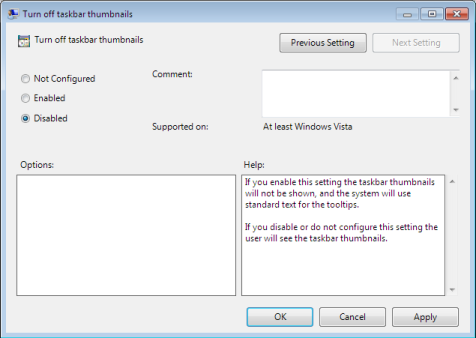
5. Now check your Taskbar, it shouldn’t show Thumbnails Preview .
In order to Enable the Taskbar Thumbnail Previews again,  select Enable in step 4.
Please Note: Taskbar Thumbnail Preview only works when you haveEnabled Aero in Windows 7.


Source

How to Speed Up Taskbar Thumbnails in Windows 7


Posted on Jan 14, 2009


Windows 7 brings a new enhanced Taskbar a.k.a Superbar, the most interesting changes  made in the GUI. When you hover your mouse on the program icon, it shows the thumbnail previews of the program.You can change the delay time that the mouse pointer has to stay hovered over an item before that item's thumbnail preview is displayed.

Here's how you can do this>>>

1. Click on the Start button, type regedit in the search box and hit enter.
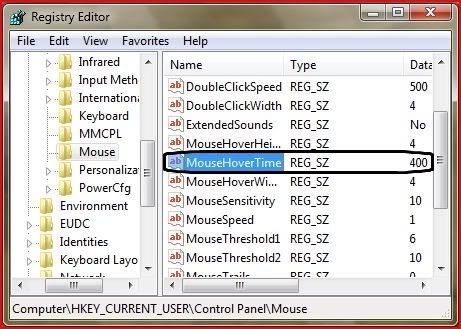
2. Now you'll have Registry Editor open. Navigate to HKEY_CURRENT_USER\Control Panel\Mouse


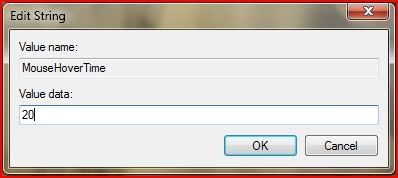
3. In the right pane, double-click on MouseHoverTime and type any value less than 400, say 20 in the Value data field (the values are in milliseconds). If u want them to appear ultrafast then type 0.


4.  Now close Registry Editor and restart the computer to see the results.
Now hover your mouse on any taskbar icon and see if thumbnails are appearing faster than before.

How to burn ISO/IMG files in windows 7

Posted on Jan 13, 2009

Windows 7 has now got a built-in Disc Image Burning Tool. Now we can easily burn ISO files using this tool. Though it doesn't support formats like Bin, Nrg and lots of others but atleast the widely used is now supported.

  Here's how you can do this>>>
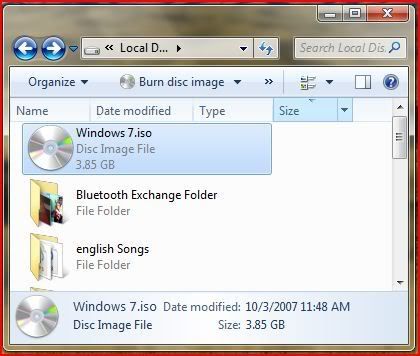
  1. Double-click or right- click any iso file that you want to burn (make sure u've a blank cd/dvd media inserted in cd/dvd burner)
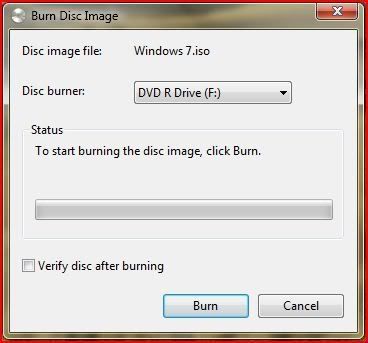
  2.A window will pop-up. Here select ur CD/DVD drive and click on Burn button   given below.


  3.You can also check the "Verify disc after burning" option to verify the disc. ( i personally never used it even in nero, it takes longer time)

    Install Windows 7 via USB or SD Media

     Posted on Jan 12, 2009

     
     So Windows 7 beta is out the door and you are ready to begin your beta experience.  Over the next few months there will be additional builds for Windows 7 (x86 and x64) as well as Windows Server 2008 R2 and that leads to a lot of installs and a lot of DVD burning and useless DVDs as soon as a new build is out.  So why not install from USB or whatever other removable media your computer can boot from?  Insert your removable media into a Windows XP or Vista PC and run the following commands from an elevated command prompt. 
    1. diskpart
    2. list disk (find the disk number for the removable media)
    3. select disk #
    4. clean
    5. create partition primary
    6. select partition 1
    7. active
    8. format fs=fat32
    9. assign letter=y (or any free drive letter)
    10. exit

    Once that is complete mount the ISO and run the following command.

    xcopy x:\*.* /s/e/f y:\

    Where “x” is the drive letter of the mounted ISO.  Once complete boot off the device and install the OS.  When a new Windows 7 or 2008 R2 build is released, simply delete the contents, rerun the xcopy command and you are ready to go again.  As a note this also works for Windows Vista and Server 2008 but you already figured that out :) 

    Windows 7 : Maximizing and Restoring Windows made easier

    Posted on Nov. 2, 2008


    As Windows 7 making news all over the web about it's new features like Superbar (new taskbar), Jump lists and the Ribbon interface etc.,i decided to try it out and i am quite satisfied with the OS as it is performing so well being in the pre-beta stage.
          
    One cool feature that i found in Windows 7 is that now we can maximize a window just by dragging it to the upper edge of our desktop and restore it just by doing the reverse. When you drag a window to the left edge of the desktop it occupies the left half of it. While you drag a window to the upper edge of the desktop in order to maximize it, you see an imaginary window frame with a  bubble like effect originating from the point where your mouse pointer touches the upper edge of the screen and it looks cool. (see screenshot below)